🏠 Home screen
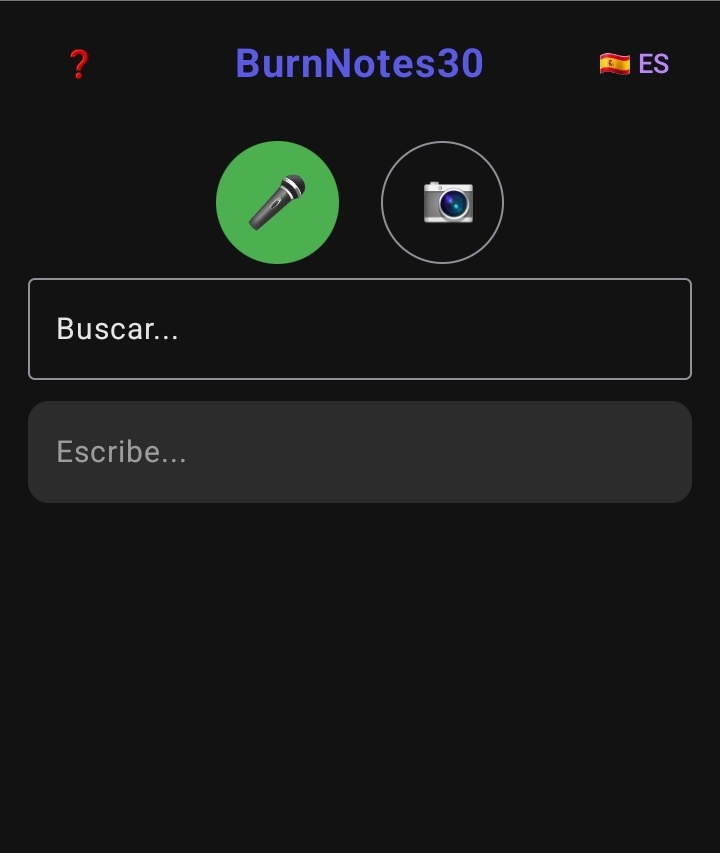
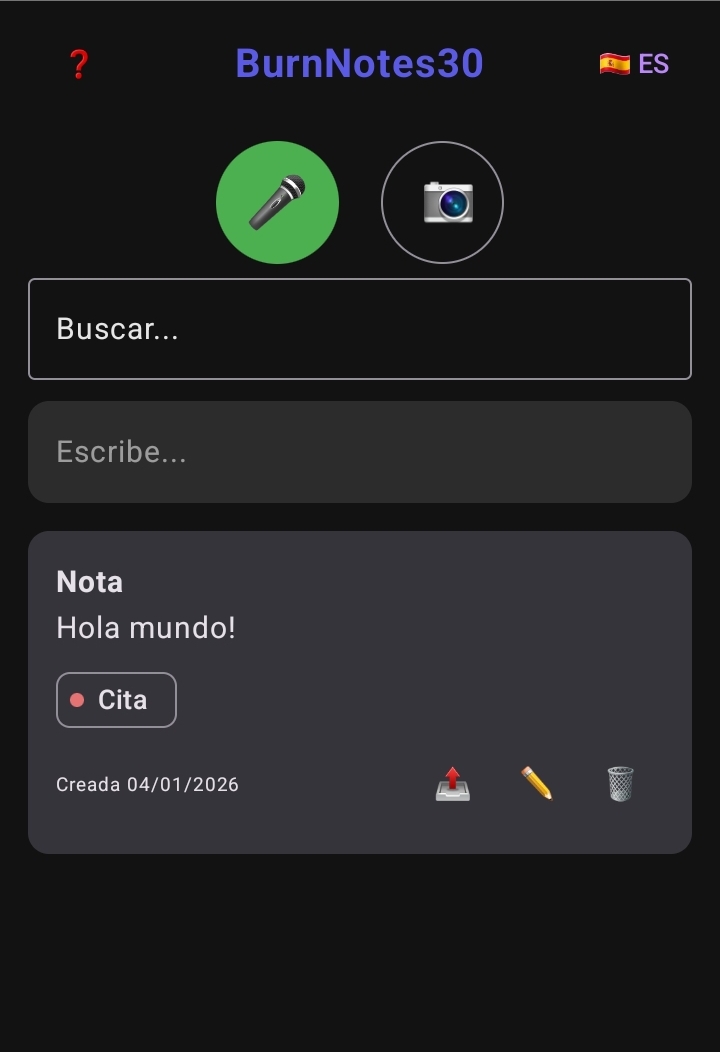
This is the main screen of BurnNotes30.
From here you can dictate notes by voice, write notes manually
or search through your existing notes.
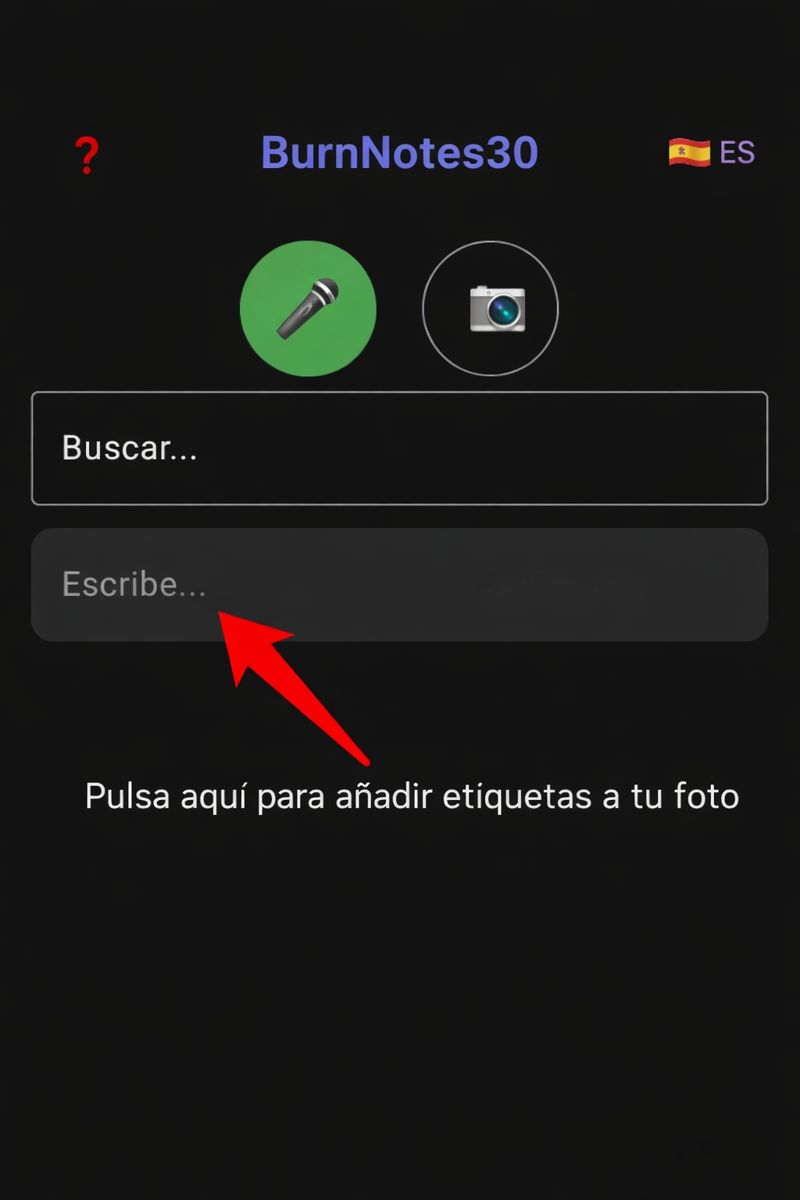
Tap Write… to create a new note.
BurnNotes30 automatically adapts to light or dark mode
according to the system settings.
✏️ Note editor
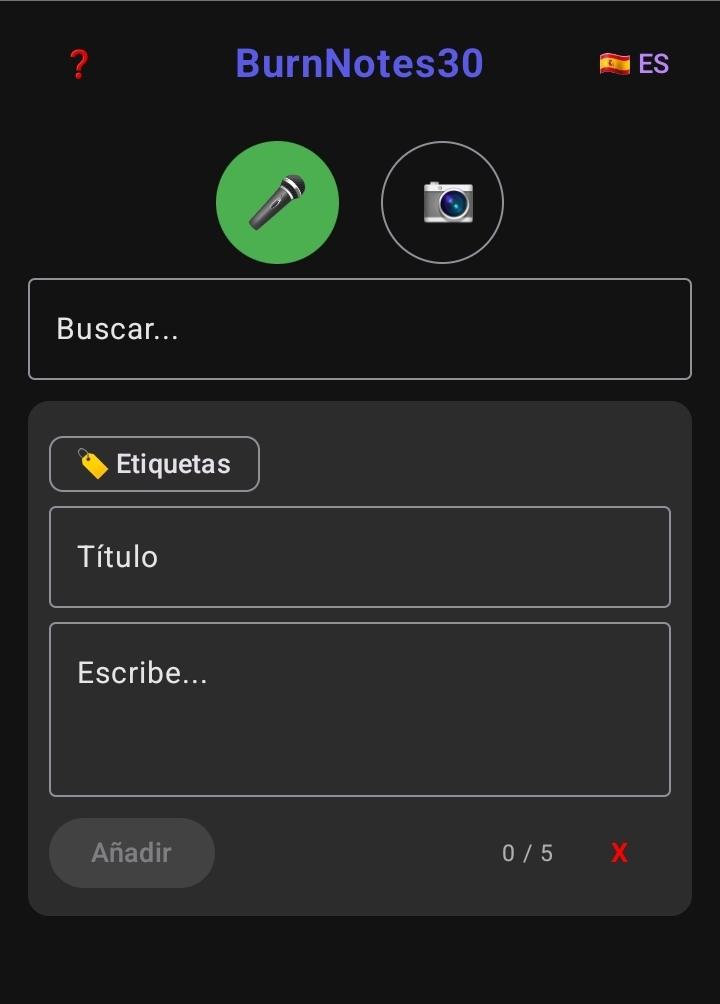
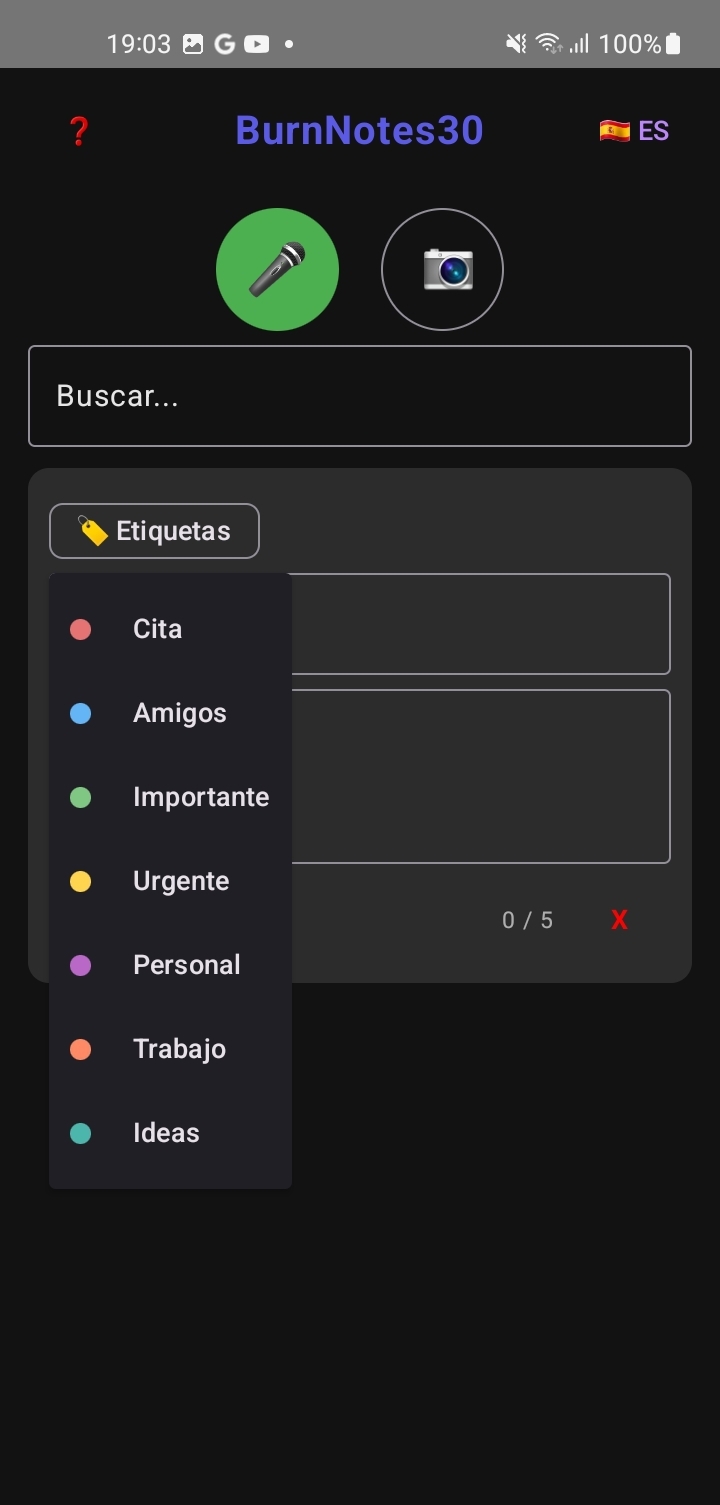
The editor appears when you tap Write….
Here you can enter the note title and content.
The Add button is enabled when the content is not empty.
Images are stored in an optimized way to reduce device storage usage.
🎤 Voice notes
Press and hold the microphone button to dictate a note.
The text will be automatically transcribed in the editor.
The transcription language depends on the language selected in the app.
⏳ Note lifecycle
BurnNotes30 is designed to help you focus on what matters now.
That is why notes are not permanent.
Each note is kept for a maximum of 30 days
from the moment it is created.
After that time, the note is automatically deleted.
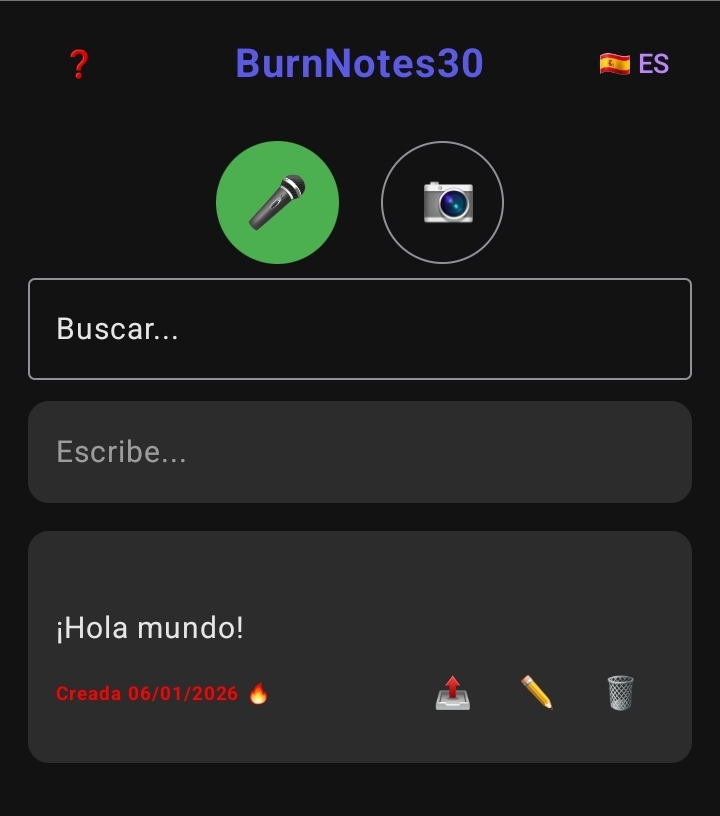
When a note has 3 days or less remaining before deletion:
-
It is shown with the
creation date in red
to warn about its upcoming deletion.
-
It appears prioritized at the top of the list.
This process is automatic and does not require any action from you.
The app takes care of everything.
Watch video on YouTube